
July 7, 2026 •Louis Mastelinck
.png?height=630&name=_Why%20%E2%80%9CAll%20Green%E2%80%9D%20Doesn%E2%80%99t%20Mean%20Exchange%20Is%20Healthy%20(2).png)
Logic Apps are excellent for automation, but when they handle identity, the design must go beyond simply "it works." In this post, we'll show you how to ensure that only authenticated HTTP calls can trigger your Logic App.
Why This Design Requires Security
Logic Apps support various trigger types, including HTTP triggers. When you send a web request to a specific URL, the data within that request is processed by the Logic App. While some scenarios require Logic Apps to be publicly exposed, allowing API calls from internet-facing devices or services, strong authentication and authorization controls are essential. Identity-driven workflows often automate privileged actions such as guest invitations, access provisioning, entitlement management, and account lifecycle operations. If those workflows can be triggered by unauthorized callers, attackers may be able to abuse automation to gain access, elevate privileges, or establish persistence within the environment.
So, what are your most obvious options?
Options for Securing Logic App Triggers
Shared Access Signature (SAS) Tokens
The baseline protection for an HTTP trigger is a Shared Access Signature (SAS) token embedded directly in the trigger URL. The URL includes query parameters like sig, sv, and sp, which represent the signature, version, and permissions. The immediate and critical downside is that the secret lives in the URL. This means the token can leak through logs, email history, browser history, or version control systems. In a production environment where guest invitations are created, this is not a valid security model.
IP Restrictions
Another option is IP address restrictions, where you configure allowed inbound IP ranges in the Logic App settings to restrict which clients can call the trigger. This adds a network boundary, especially useful when the caller has a static IP (for example, API Management or an Azure Function). However, IP addresses do not authenticate identity. If an attacker discovers the URL and can route traffic through an allowed IP, they can still invoke the workflow. IP restrictions should be used as a complementary control, not as the primary one.
Entra ID Authorization Policy
The Entra ID authorization policy is the recommended approach for production workflows. It requires a valid bearer token in the request’s Authorization header when the trigger is called. The Logic App runtime then uses the authorization policy to validate the token before allowing the trigger to run.
The diagram below illustrates how a valid access token is requested from Microsoft Entra ID using the correct scope, and how that token is subsequently used to authenticate requests against a Logic App’s HTTP trigger.
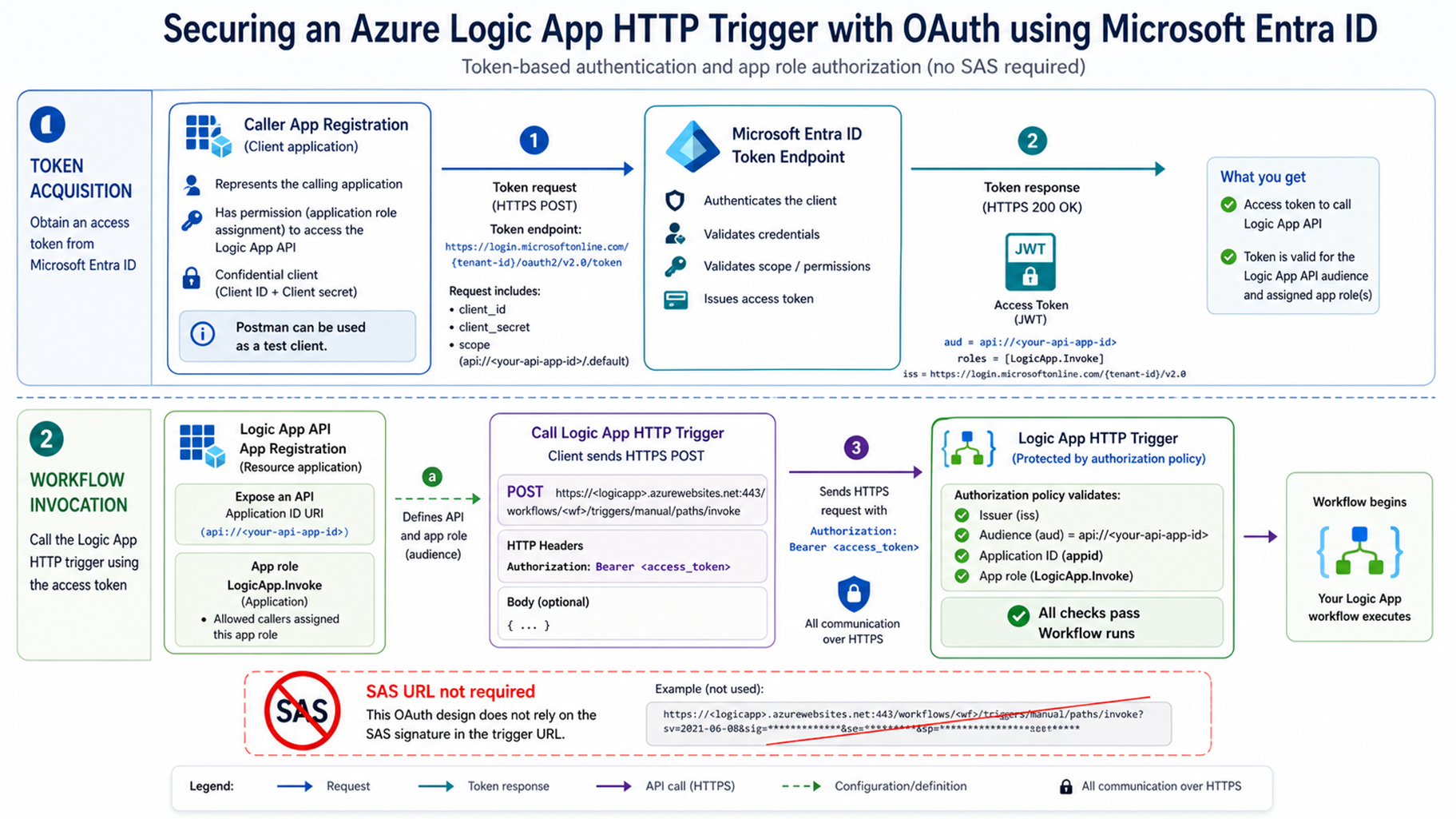
Figure 1: Complete Oauth flow that will be built in this blog post
In this post, I will guide you through the process step by step, helping you not only implement it successfully but also understand the underlying concepts.
Setting up an OAuth flow
In this blog post we will be using Postman to mimic our client application that will trigger our logic app that will invite a guest user to my tenant.
Step 1: Create the caller app registration
To get started, we first need a way to get a valid bearer token. This is done by creating a caller app registration that will request tokens from Microsoft Entra ID using its client ID and client secret. A successful token request to Entra ID will return a bearer token that targets the Logic App API audience.
To start, go to Entra ID > App registrations > New registration.
A possible name could be:
client-guestinviter
This app registration represents the caller (such as Postman or another service), and it will be used to fetch a valid bearer token.
Step 2: Create the API app registration
We also need an app registration that represents the Logic App as an API resource. This app registration defines the API audience that tokens will be requested for.
Go to Entra ID > App registrations > New registration.
A possible name could be:
logicapi-guestinviter
Go to Expose an API and add an application ID URI; the portal will prefill it for you. It should look like this:
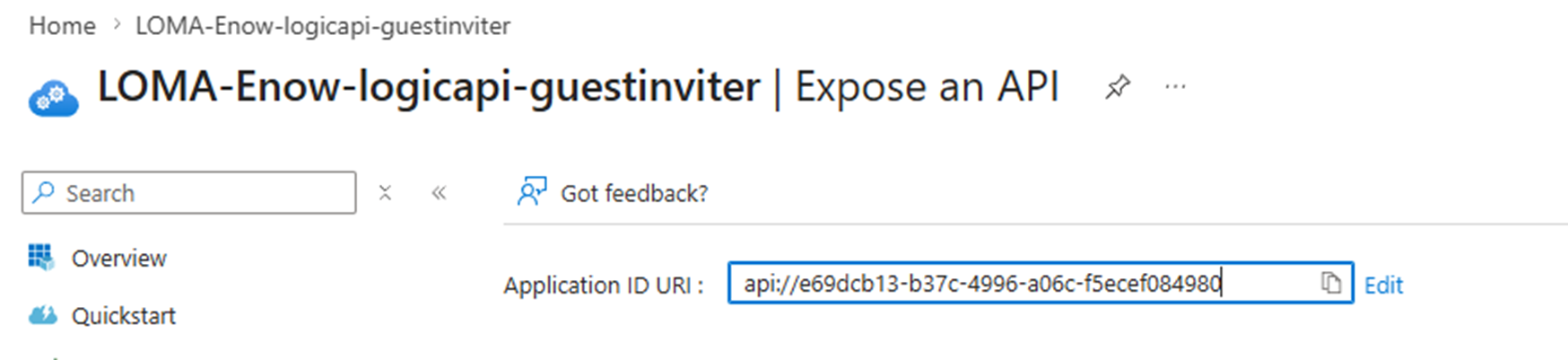
Figure 2: creation of Application ID URI
While we are in the logicapi-guestinviter app registration, we will create an app role. This role can be assigned to an application that represents our caller. Using this role, we only allow applications that have been granted the LogicApp.Invoke role to trigger our Logic App.
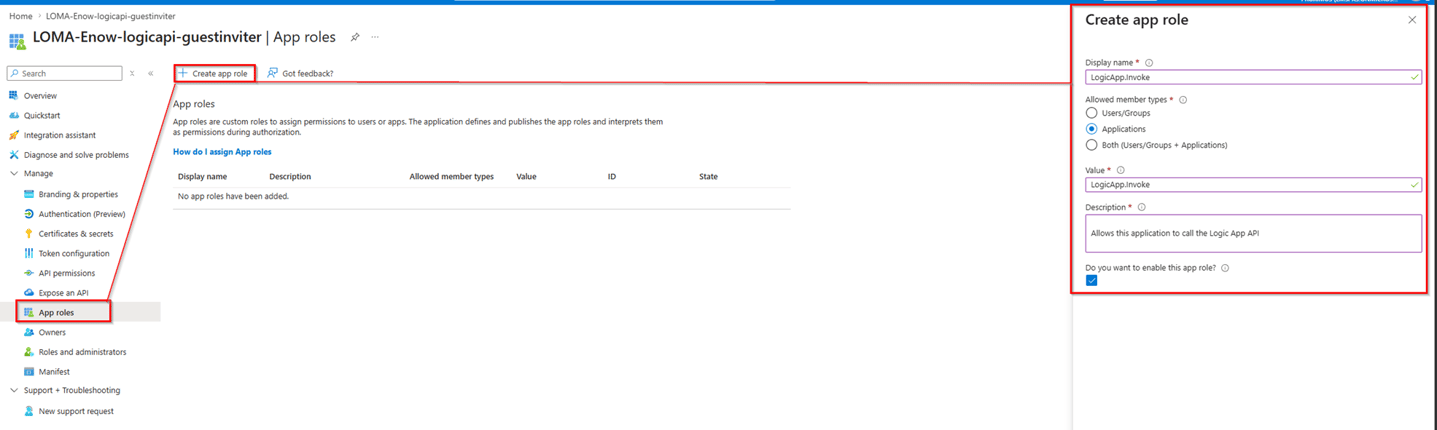
Figure 3: Creation of app role
We will then assign the LogicApp.Invoke role to our client-guestinviter. Unfortunately, the Azure portal only supports assigning app roles to users and groups, not to other applications (service principals). Therefore, you must assign the LogicApp.Invoke app role to the client-guestinviter application via Microsoft Graph PowerShell (or the Graph REST API).
Assigning an app role provides an important authorization layer. While the Logic App authorization policy validates that the caller presents a valid token, the LogicApp.Invoke role determines which applications are actually permitted to invoke the workflow. This helps ensure that possessing a valid token alone is not sufficient to trigger the Logic App.
Here is a PowerShell script that will apply the role; be sure to update it with your correct app IDs.
# Install required Microsoft Graph modules
Install-Module Microsoft.Graph.Authentication -Scope CurrentUser
Install-Module Microsoft.Graph.Applications -Scope CurrentUser
Install-Module Microsoft.Graph.Applications -Scope CurrentUser
Connect-MgGraph -Scopes "AppRoleAssignment.ReadWrite.All", "Application.Read.All", "Directory.Read.All"
# Enter your values
$apiAppId = "" # logicapi-guestinviter app registration (Application/client ID) $clientAppId = "" # client-guestinviter app registration (Application/client ID) $appRoleValue = "LogicApp.Invoke"
$apiAppId = "" # logicapi-guestinviter app registration (Application/client ID) $clientAppId = "" # client-guestinviter app registration (Application/client ID) $appRoleValue = "LogicApp.Invoke"
# Resolve the service principals
$apiSp = Get-MgServicePrincipal -Filter "appId eq '$apiAppId'"
$clientSp = Get-MgServicePrincipal -Filter "appId eq '$clientAppId'"
$apiSp = Get-MgServicePrincipal -Filter "appId eq '$apiAppId'"
$clientSp = Get-MgServicePrincipal -Filter "appId eq '$clientAppId'"
# Find the app role on the API service principal
$appRole = $apiSp.AppRoles | Where-Object { $_.Value -eq $appRoleValue -and $_.AllowedMemberTypes -contains "Application" }
$appRole = $apiSp.AppRoles | Where-Object { $_.Value -eq $appRoleValue -and $_.AllowedMemberTypes -contains "Application" }
#Validate results
if (-not $apiSp) { throw "API service principal not found for appId $apiAppId" }
if (-not $clientSp) { throw "Client service principal not found for appId $clientAppId" }
if (-not $appRole) { throw "App role '$appRoleValue' not found on API app registration" }
if (-not $apiSp) { throw "API service principal not found for appId $apiAppId" }
if (-not $clientSp) { throw "Client service principal not found for appId $clientAppId" }
if (-not $appRole) { throw "App role '$appRoleValue' not found on API app registration" }
#Create the app role assignment
$params = @{
$params = @{
principalId = $clientSp.Id
resourceId = $apiSp.Id
appRoleId = $appRole.Id
resourceId = $apiSp.Id
appRoleId = $appRole.Id
}
New-MgServicePrincipalAppRoleAssignment -ServicePrincipalId $clientSp.Id -BodyParameter $params
# Verify the assignment
Get-MgServicePrincipalAppRoleAssignment -ServicePrincipalId $clientSp.Id | Where-Object { $_.ResourceId -eq $apiSp.Id } | Select-Object Id, PrincipalId, ResourceId, AppRoleId
If you execute the script, you will see that the Client app registration has the LogicApp.invoker role assigned. This ensures that not every app registration can trigger the logic app with a valid token.
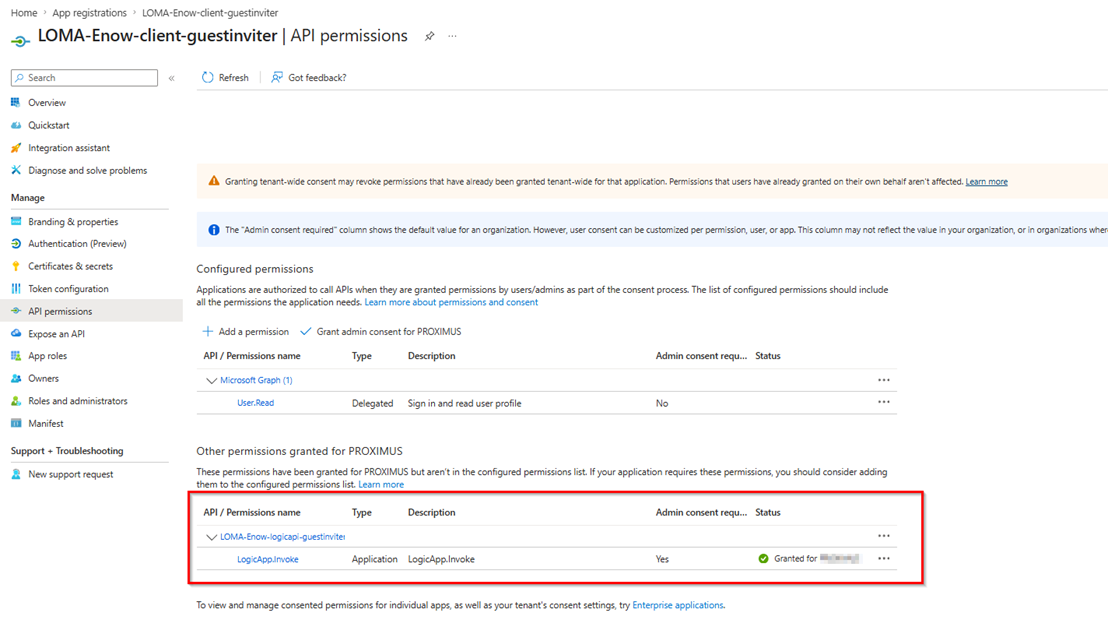 Figure 4: App role assignment
Step 3: Logic App authorization policy
After assigning the LogicApp.Invoke app role to the client-guestinviter application, the next step is to configure the Logic App itself to validate incoming bearer tokens. This is done by adding an authorization policy on the HTTP trigger. The goal is simple: the Logic App should only run when the incoming token was issued by the correct tenant, is meant for the correct API, and was requested by the approved caller application.
In the Logic App, go to Settings > Authorization and create a new policy. In this policy:
- Configure the Issuer: https://sts.windows.net/<tenantid>/
- The Audience with the exposed API URI value of logicapi-guestinviter,
- Add a custom claim check for appid with the client ID of client-guestinviter
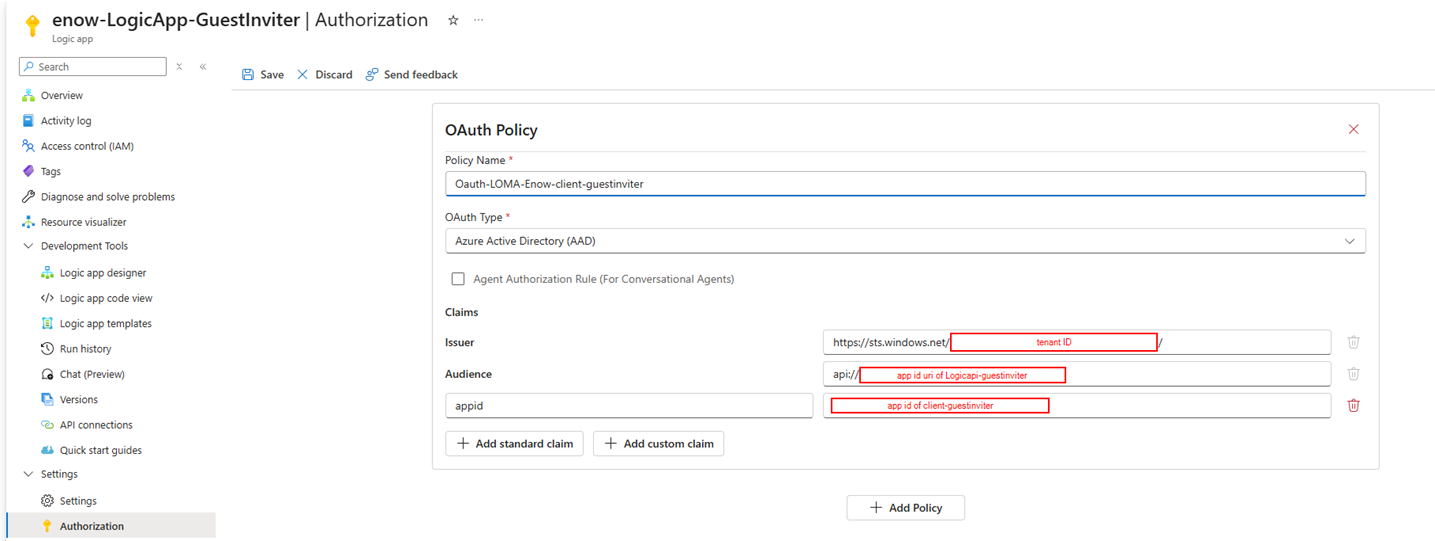
Figure 5: Oauth policy config in Log App
Once that policy is in place, the client-guestinviter application can request an access token from Microsoft Entra ID by using its own client ID and client secret. That token must target the Logic App API audience, and it will later be sent in the Authorization: Bearer <token> header when calling the Logic App. At that point, the Logic App runtime checks the token before the workflow is allowed to start.
An important detail from the implementation is that the Logic App trigger should be called without the SAS signature when bearer authentication is being used. In other words, once the trigger is protected with OAuth, the security model should rely on the token in the authorization header rather than on a secret embedded in the URL. To ensure that no SAS signatures are evaluated, we will have to alter our Logic App.
If the token passes all configured checks, the Logic App accepts the request, and the workflow continues.
Putting it all together
Requesting a valid token
The first step in our authentication flow is requesting a valid token. This is done using the credentials of the client-guestinviter app registration. In this example, we authenticate using a client secret because it is easy to demonstrate with Postman. For production Azure-to-Azure integrations, consider using Managed Identities whenever possible, as they eliminate the need to manage and rotate credentials while providing a more secure authentication model. You need to create this secret in the app registration within your tenant.
Steps to create a client secret:
- Navigate to Microsoft Entra ID in the Azure portal
- Select App registrations from the left menu
- Find and select your client-guestinviter app registration
- Go to Certificates & secrets in the left menu
- Under Client secrets, click New client secret
- Add a Description (for example, "Logic App HTTP Trigger")
- Choose an Expires duration (for example, 6 months)
- Click Add
Copy the Value of the secret (not the Secret ID). This is what you will use in your Postman.
*Best Practice Note: Be sure to track and rotate client secrets before they expire. Expired credentials are a common cause of authentication failures in automated workflows. Organizations should consider implementing monitoring and governance processes to ensure application credentials remain current.
Now go to Postman and create a new POST request so can get a valid token using the credentials from client-guestinviter towards the logicapi-guestinviter exposed api.
POST https://login.microsoftonline.com/<tenantID>/oauth2/token
The body should look as follows:
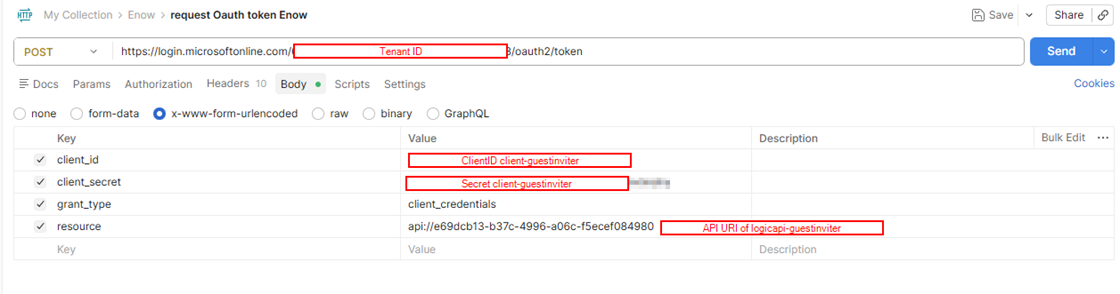
Then, when performing the POST request, you should get a response as follows:
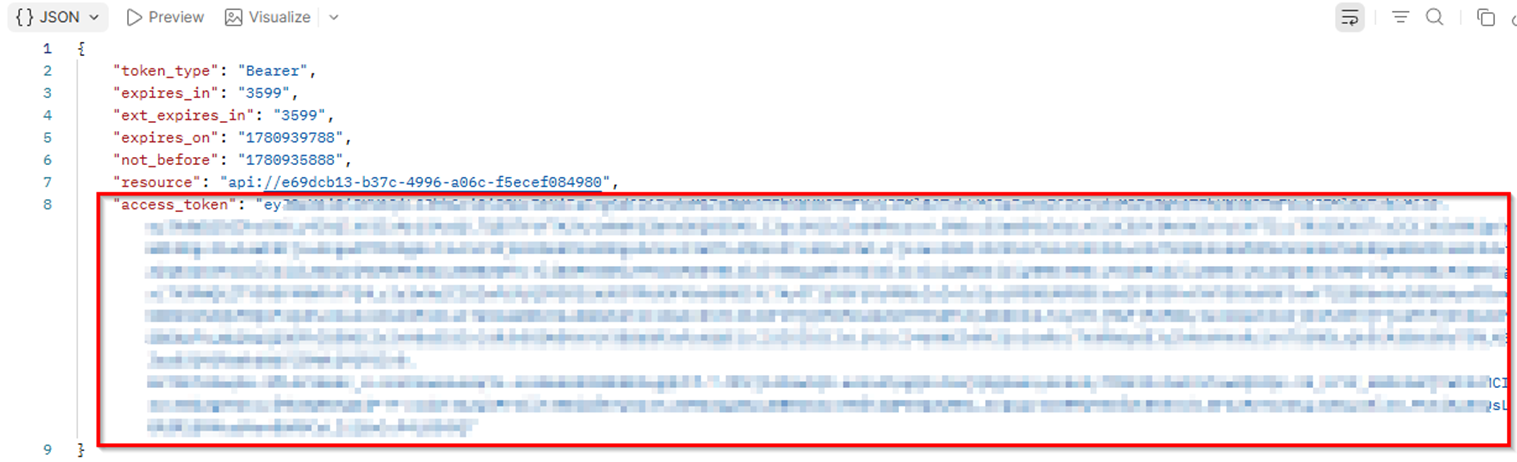 Figure 6: screenshot of bearer token in Postman
Now we have received an access token that can be used to send along with our web request towards the logic app. You will need this token later in the blog for a post request to the logic app.
Trigger your Logic App
When you create a Logic App with an HTTP trigger, you can view the HTTP URL by opening the trigger block. This will be the unique URL where you will perform your request.
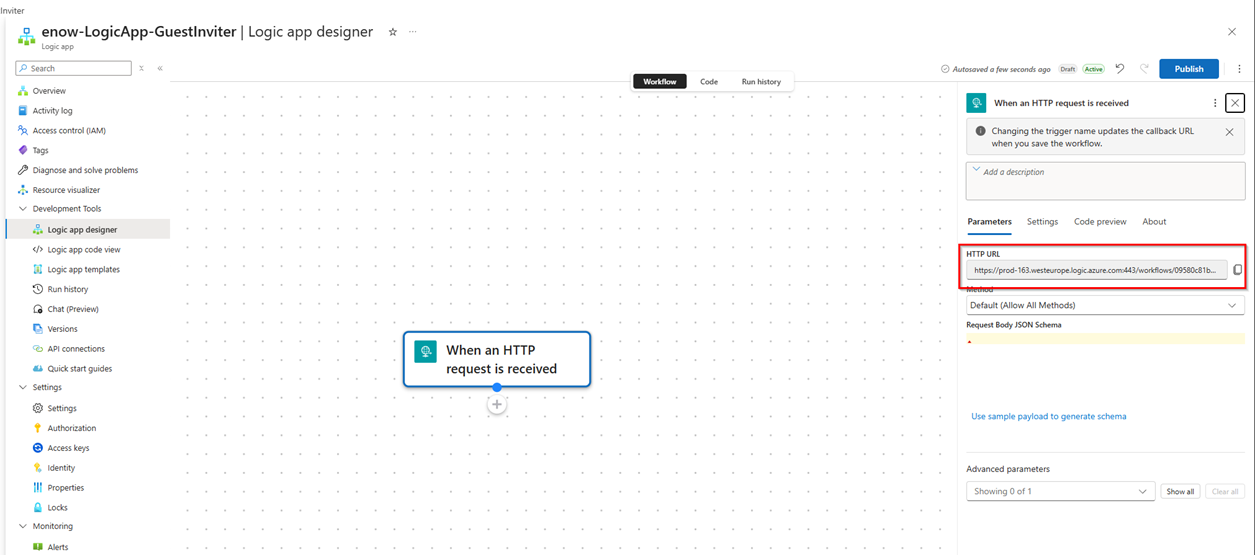
Figure: 7 Finding the HTTP trigger URL of the logic app
For troubleshooting, I also like to add:
"operationOptions": "IncludeAuthorizationHeadersInOutputs"
This exposes the authentication headers in Logic App run history, which makes debugging much easier.
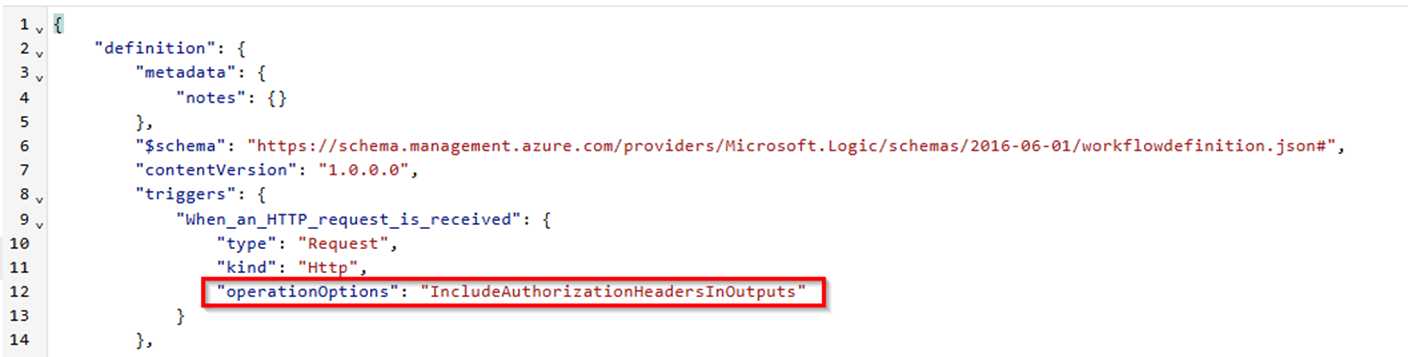
Figure 8: Adding header logging in the logic app
Let’s create a POST request to trigger the Logic App:
POST <Logic App trigger URL>
Important: After copying the trigger URL, it may still include the SAS token. In that case, you only need to paste the trigger URL into Postman. The URL should look something like this, leaving out the striped-through values
https://prod-242.westeurope.logic.azure.com:443/workflows/******************/triggers/When_an_HTTP_request_is_received/paths/invoke?api-version=2016-10-01&sp=%2Ftriggers%2FWhen_an_HTTP_request_is_received%2Frun&sv=1.0&sig=PyNZpq2vACMN0DLB4WmwOPChKsrU3951ZwkSqbacoUs
Then add an Authorization header with your access token from the previous Postman request:
Authorization: Bearer <session token you copied earlier>
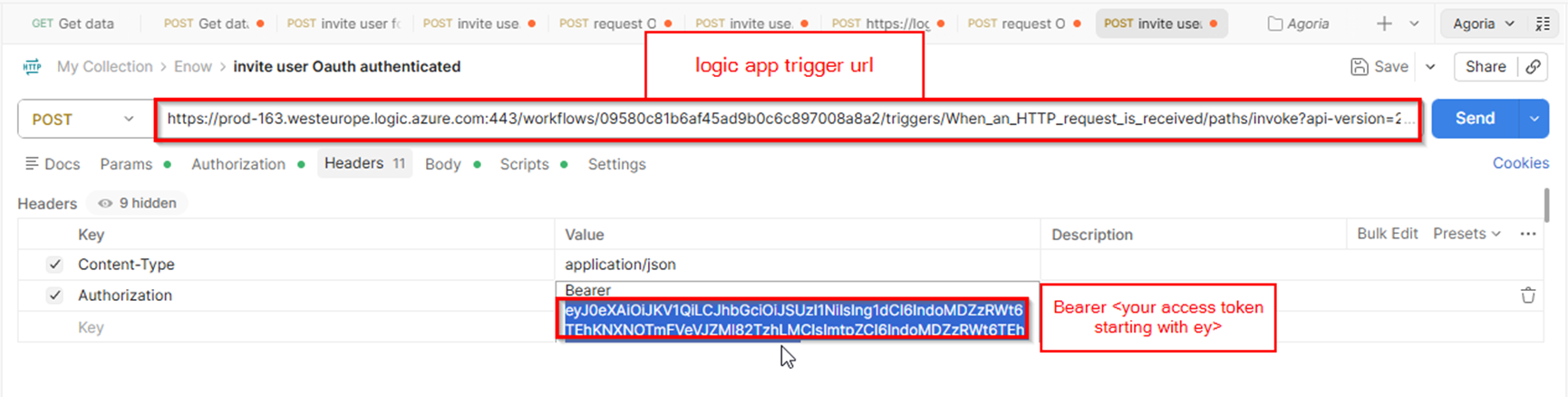
If you send this POST request, you’ll receive a 202 Accepted response.
If we then check the Logic App run history, we can see that the trigger completed successfully. Don’t worry, the authorization header is sanitized in the history view.
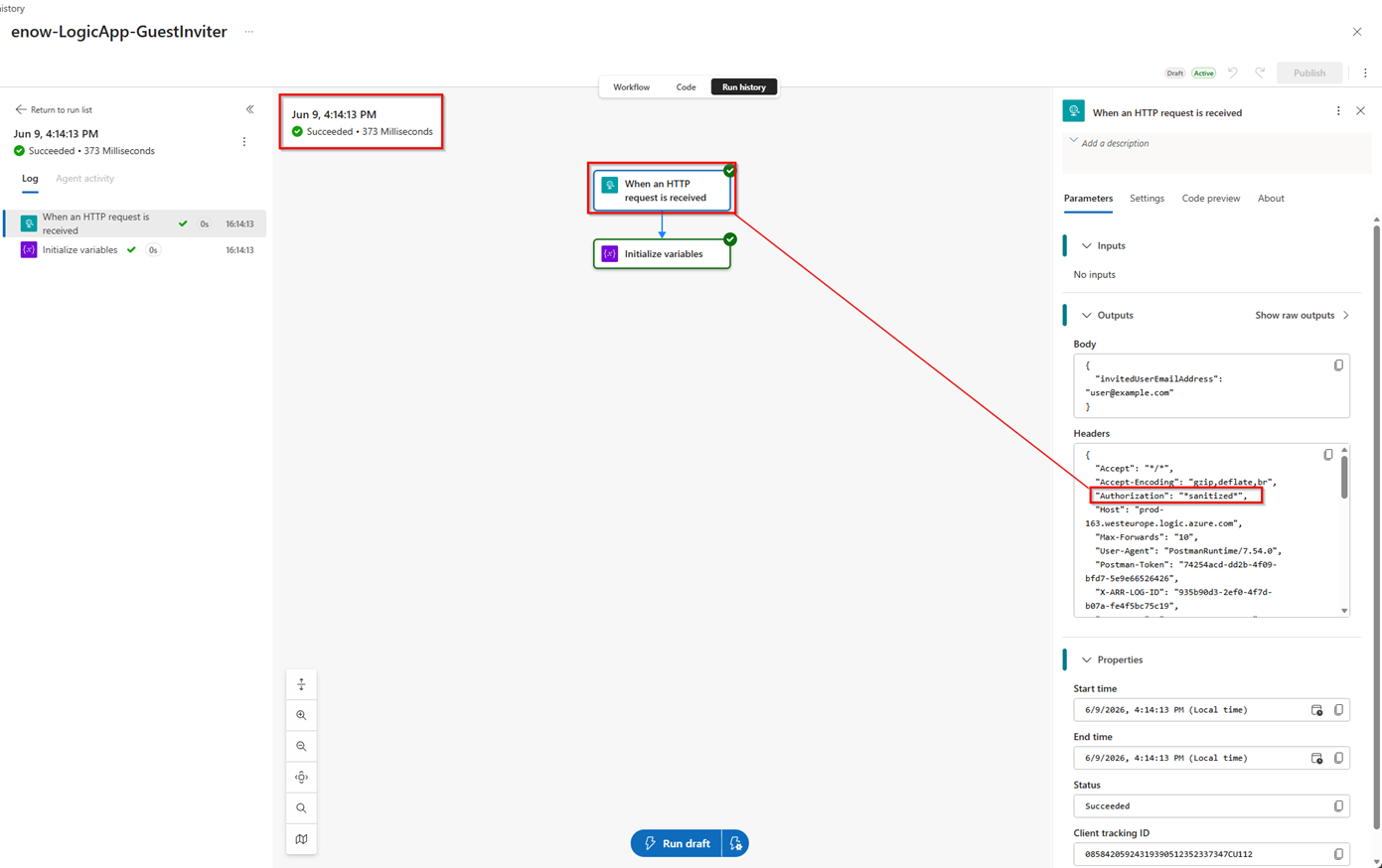 Figure 9: Successful trigger of your logic app with authentication
You just implemented OAuth
In short, OAuth policies give Logic Apps a much stronger security model for production use. Instead of relying on a shared SAS URL, the workflow can verify the caller’s bearer token and enforce claims such as issuer, audience, app ID, and role. That means only the right application, with the right permissions, can trigger the logic app. It takes a little more setup, but the result is a cleaner, safer, and more production-ready authentication flow.
This example also highlights a broader challenge in Microsoft Entra ID environments: application identities require governance. App registrations, service principals, app roles, permissions, secrets, and certificates all influence an organization's security posture. As automation grows, maintaining visibility and control over those identities becomes increasingly important.
How many application identities exist in your tenant right now?
The OAuth model described in this article relies on app registrations, service principals, roles, and secrets. As those identities grow, maintaining visibility becomes increasingly difficult.
ENow App Governance Accelerator helps organizations discover, govern, and continuously monitor the applications connected to Microsoft Entra ID so you can answer that question confidently.

Written by Louis Mastelinck
Louis Mastelinck is a Belgian Soc analyst and security consultant with a passion for keeping the digital world secure. Specializing in incident response and the Microsoft Security stack (MDE, MDO, MDI, MDCA, Sentinel, ...), he excels at neutralizing threats and protecting organizations. As a Microsoft MVP and GCFA-certified professional, Louis brings a wealth of expertise to the table.